Intro
Lately I've been playing a lot with self-hosting, NAS, media servers and allthe shenanigans around building my own infrastructure.
Partly to have more control over the things I own, but also to take a stepfurther in my IT knowledge.
One pain point of mine, as a Brazilian living abroad, is that sometimes I wantto check websites and content that's blocked outside Brazil. I do have a VPNprovider, but some services still seem to block those "well-known" ips andservers, leaving me with no way around it... until now.
I had already set up Tailscale to avoid exposing my NAS to the internet whilestill being able to access it from anywhere, and I learned that I could alsocreate exit nodes to use as my private remote servers.
So I decided to set up a Raspberry Pi as my server in Brasil, and every time Ineed to access something there, instead of using my VPN service, I'll goprivately 😌.
Since this setup isn't trivial, I've decided to write a guide for my futureself — and also for those who want the same thing and don't want to spendhours connecting all the pieces.
A huge thanks to my friend Bruno Paulino, whodid this before me and showed me the way. All I had to do was refine theprocess and make some steps easier. Love u bro.
Setup
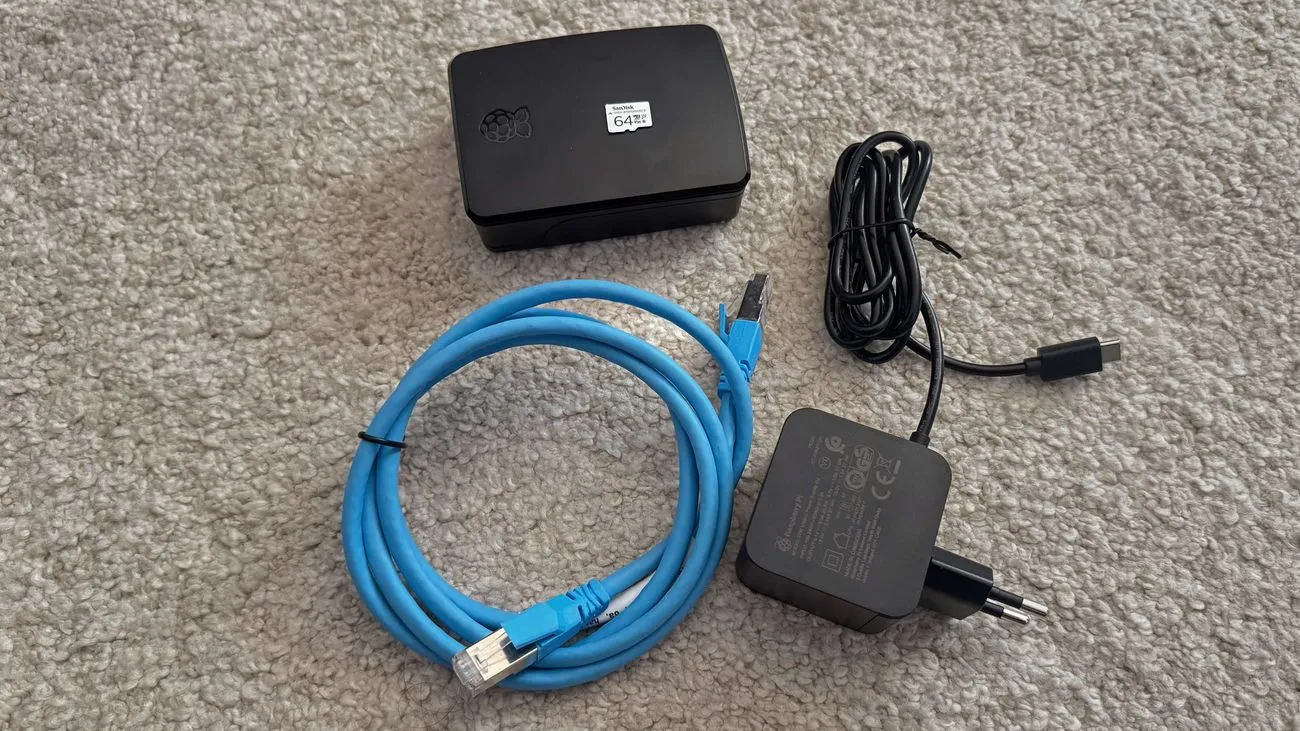
- Raspberry Pi 5 2GB
- A Pi 4 also works, but it's getting hard to find
- SanDisk High Endurance 64GB
- 64GB is more than enough for an exit-node-only setup
- Official Raspberry Pi 27W USB-C power supply
- (to look fancy) Official Raspberry Pi case in black
- Ethernet cable
- A working Tailscale account
Requirements
For this tutorial, I'll assume you already have the setup mentioned above andknow the basics of linux and the terminal.
I'm using macOS for the initial setup, so if you're on linux it won't be toodifferent. If you're on Windows, I can't tell whether it's the same — sadly(or not), I don't use Windows nor have a Windows machine at hand.
Let's start.
SSH
The idea is to connect from my machine to these servers only via SSH. For that, we need we need a key. If you don't have one and don't know how to create one, follow along.
I already have an SSH key I use for Git for example, but in this case, I'll create a new one. To do that, run:
ssh-keygen -t ed25519 -f ~/.ssh/pi-nodes-key -C "pi-nodes-key"Set (or skip) a password and hit enter.
Install Raspberry Pi OS
We'll install the OS directly to the SD card from our PC. For that, you'll need to download and install the official Raspberry Pi Imager (I'm using v2.0.7).
Once installed, plug in your SD card and open the imager.
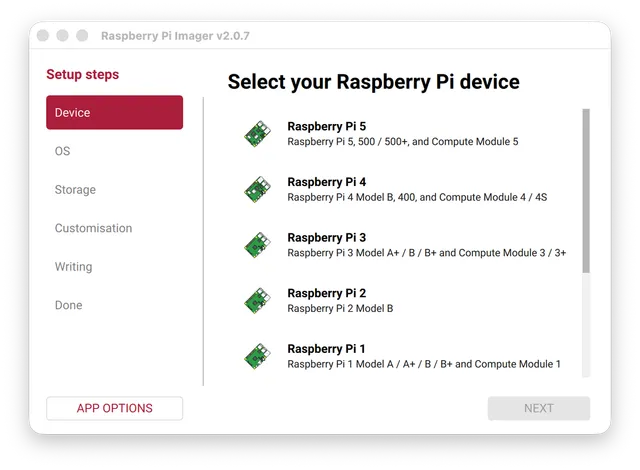
First, we need to select our Pi model:
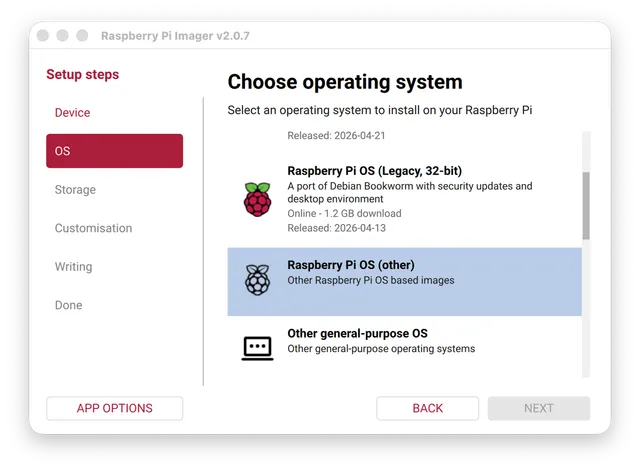
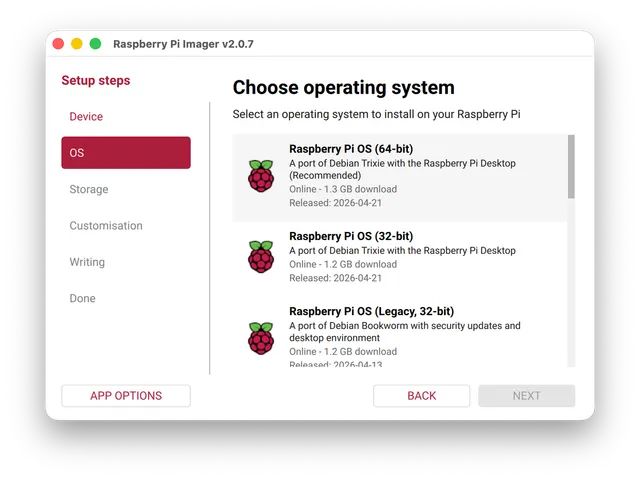
Since this server is only going to act as an exit node, there's no point ininstalling a full OS with a GUI. So let's scroll down, select Raspberry Pi OS (Other), then Raspberry Pi OS Lite (64-bit), and finallyclick "Next":
Select your SD card and click “Next”:
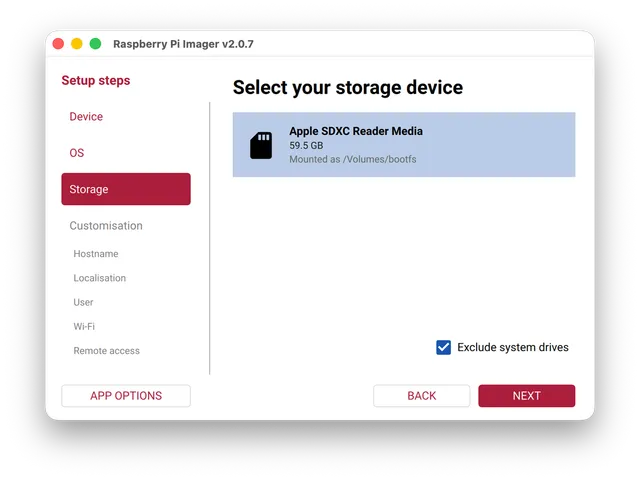
Now we enter customization land.
First, choose a hostname. This help us find the device on the network. Pick a name for the Pi click to “Next”:
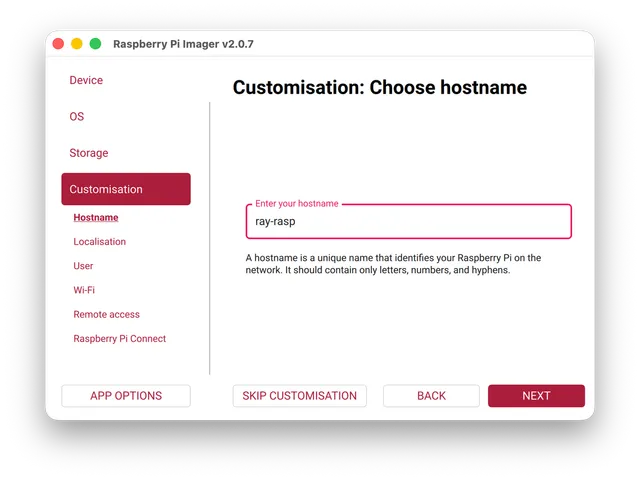
Select the localization options (time zone, keyboard) that fit your case.
Then, let's set up a username and password. It's important to have a password because we'll run commands with sudo and it's required. You can pick a simple one, in the end, this server will only be accessed via our SSH key.
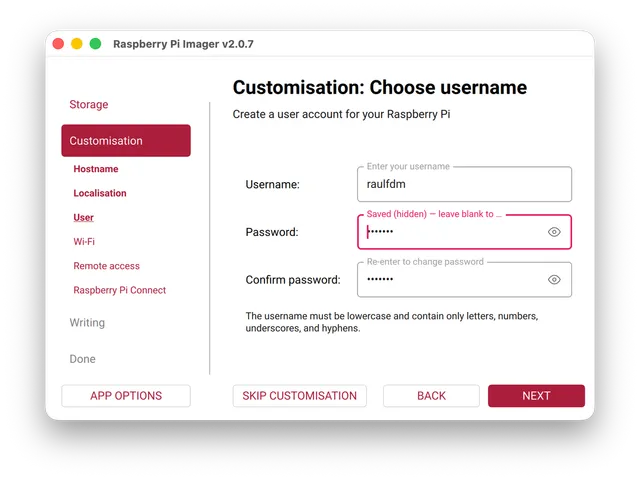
For Wi-Fi options, I won't set anything. For better resilience, my goal is to plug this server directly into the router via cable. So, “Next”.
Now it's time to set up our SSH authentication.
First, enable SSH, choose Use public key authentication, and under “No SSH Keys Configured”, click to “Show”, then “Browser”, select your public key, and click “Next”:
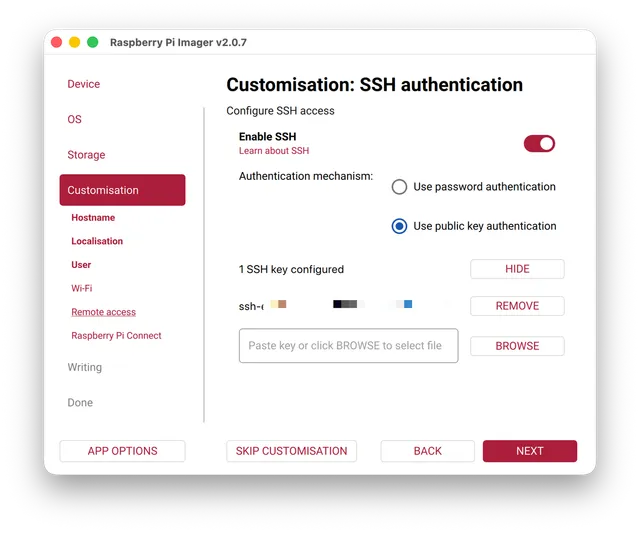
Choose "No" for Raspberry Pi Connect (unless you're interested to have it).
At the end, you'll have a summary like this:
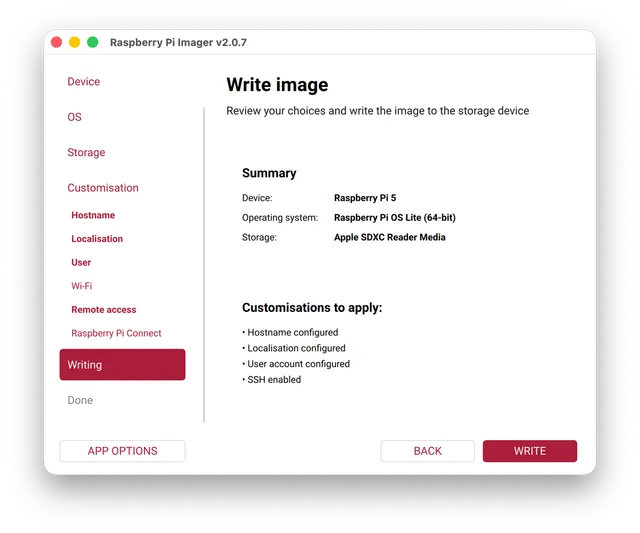
Click “I Understand, Erase and Write” and wait until the process finishes.
Click “Finish” and let's rock.
Remote setup
We're gonna configure our Raspberry Pi remotely becase I don't want to plug a monitor or keyboard into it.
To start, connect the ethernet cable and the power supply to your server.
We need to know its IP on our network. Since I use a TP-Link router, I can easily find it in the router's home page.
With the IP in hand, we can connect:
If you have your SSH key configured correctly, it’ll be used and you'll connect:
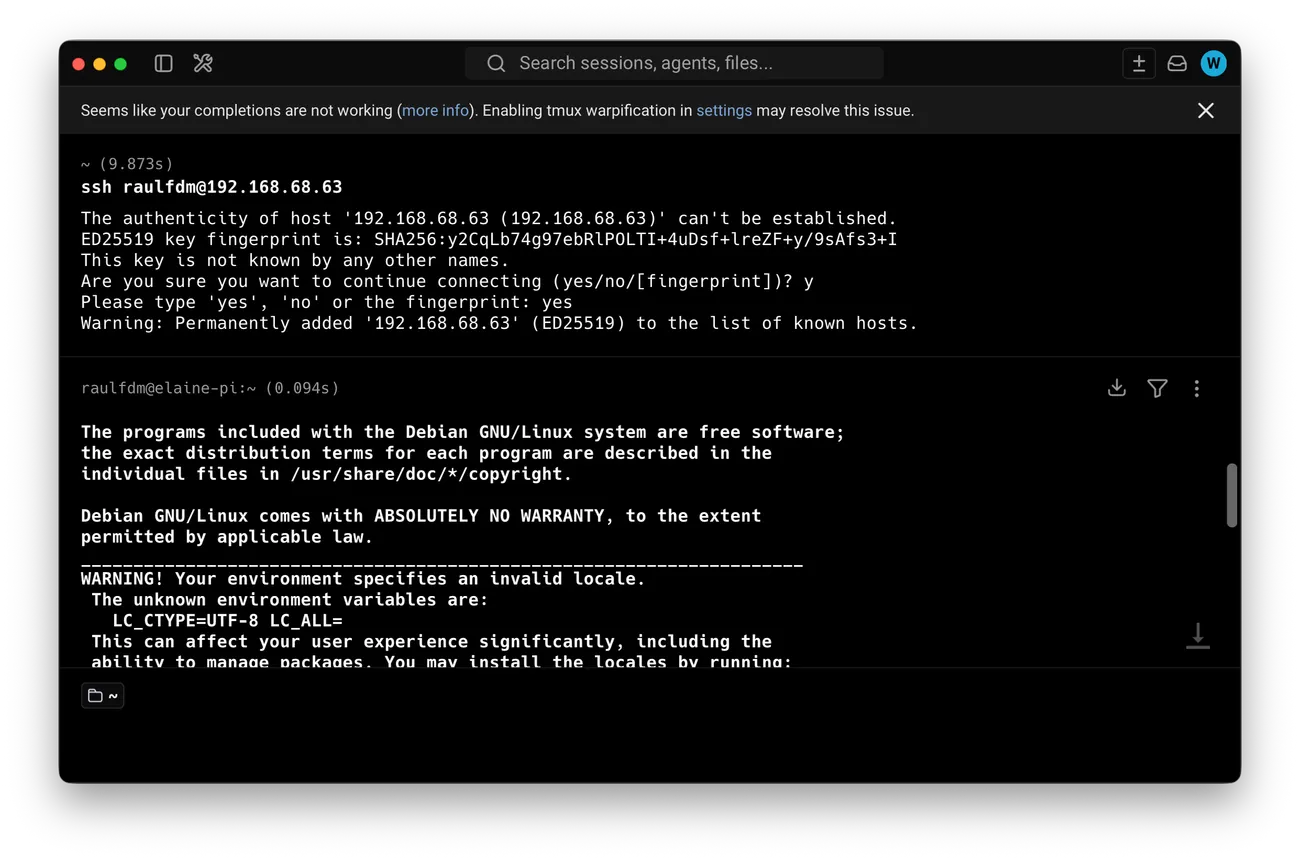
Update the OS
Before we begin, it's a good idea to have the OS and firmware up-to-date.
Run the following commands:
# Overall updates and upgrades
sudo apt update && sudo apt upgrade -y

#  Apply upgrades that may add or remove packages, which "apt upgrade" won't
sudo apt full-upgrade -y

# Reboot
sudo reboot
Now we can start our configuration.
Disable password access
Connect to the Pi again server and let's edit the sshd_config :
sudo nano /etc/ssh/sshd_configCTRL + W and search for PasswordAuthentication. It’ll be commented out and set to yes:
...
# To disable tunneled clear text passwords, change to "no" here!
#PasswordAuthentication yes
...
Uncomment it, set it to no and add ChallengeResponseAuthentication no to be right below:
...
# To disable tunneled clear text passwords, change to "no" here!
PasswordAuthentication no
ChallengeResponseAuthentication no
...Save the changes.
Enable SSH Server
Another action before Tailscale specifics, is to ensure the SSH server is enabled on the Pi.
sudo raspi-configSelect 3 Interface Options, then I1 SSH , hit "Enter" and "Enter" again to confirm:
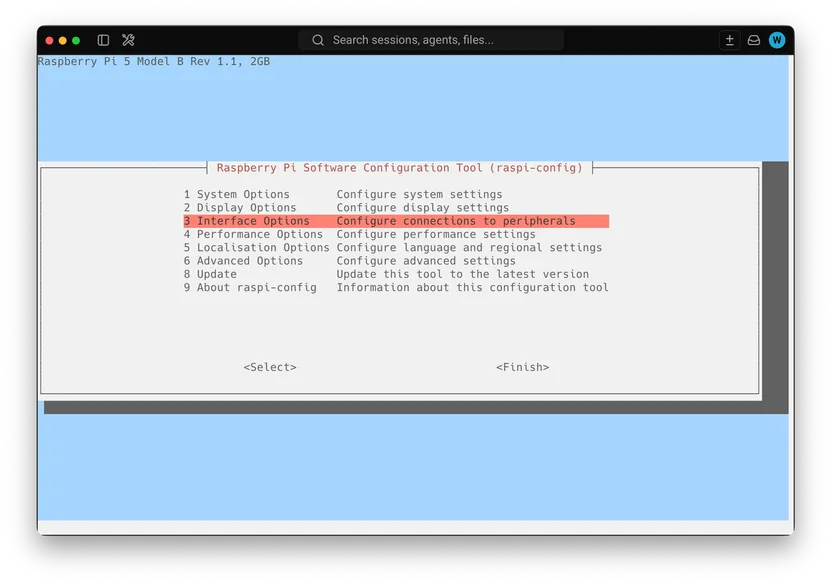
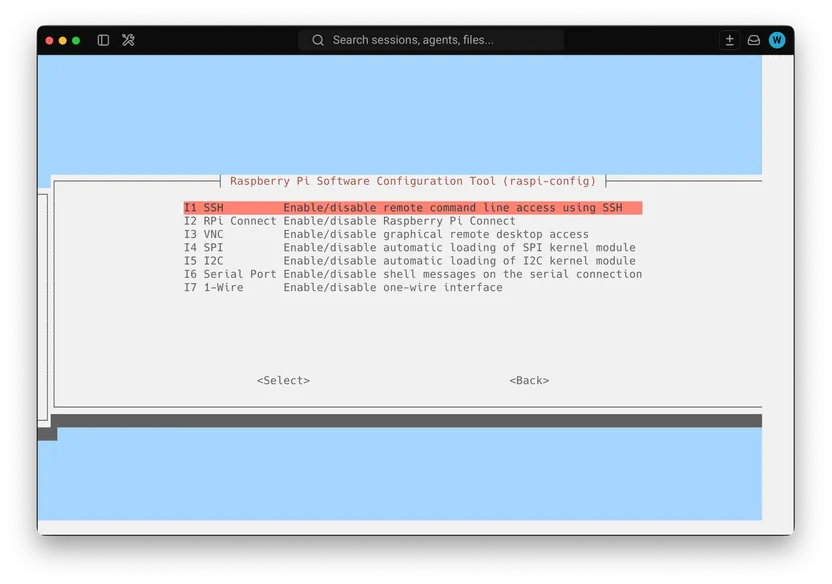
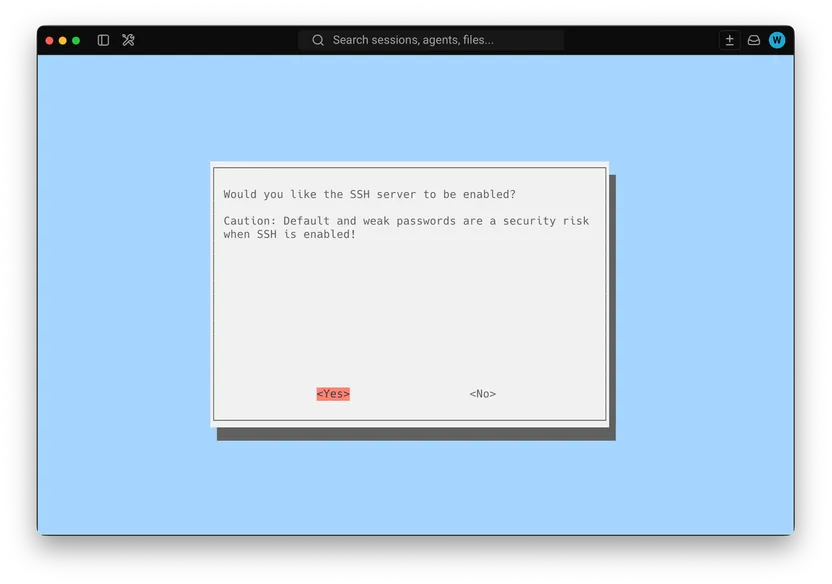
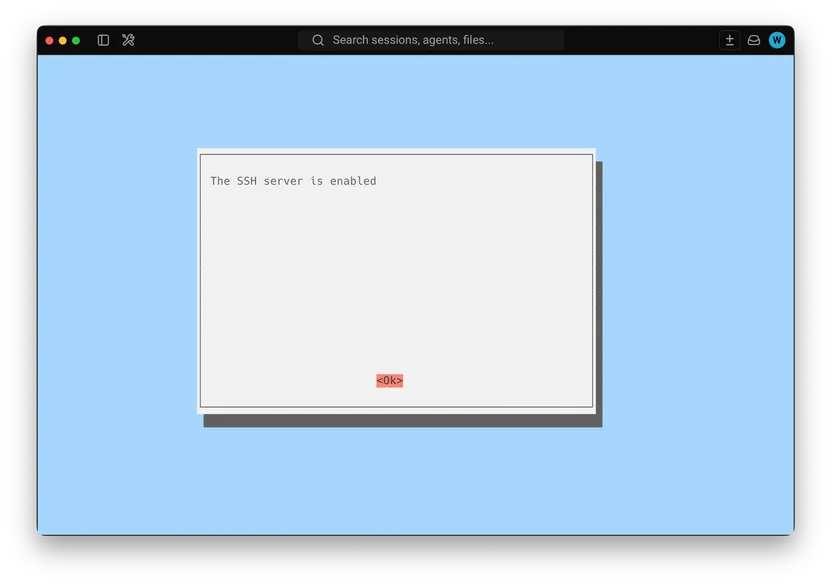
Then hit "Esc" twice to leave the interface.
Tailscale Setup
Package
Now that we're connected, let's install Tailscale.
First, install the required dependency:
sudo apt-get install apt-transport-httpsThen add Tailscale's package signing key:
curl -fsSL https://pkgs.tailscale.com/stable/raspbian/bullseye.noarmor.gpg | sudo tee /usr/share/keyrings/tailscale-archive-keyring.gpg > /dev/null

curl -fsSL https://pkgs.tailscale.com/stable/raspbian/bullseye.tailscale-keyring.list | sudo tee /etc/apt/sources.list.d/tailscale.list
Finally, update the package index and install Tailscale:
sudo apt update && sudo apt install tailscaleNow we need to log in:
sudo tailscale upThis will give us a link to authenticate with:
To authenticate, visit:

	https://login.tailscale.com/a/f71f01b01ee06
Open the link and you’ll see a screen to connect your new device:
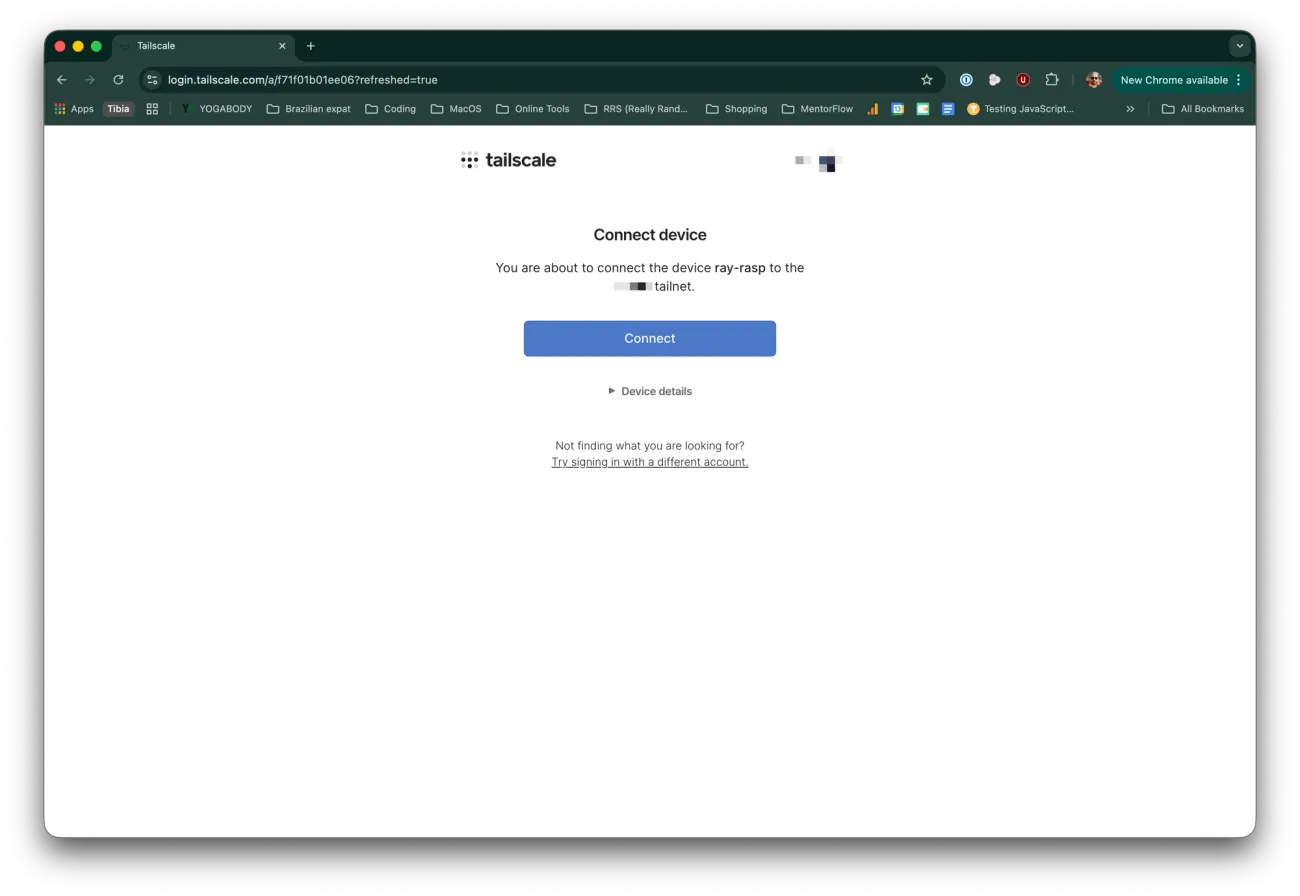
After you click “Connect”, you’ll be redirected to your Tailscale dashboard and the Raspberry Pi will be set up.
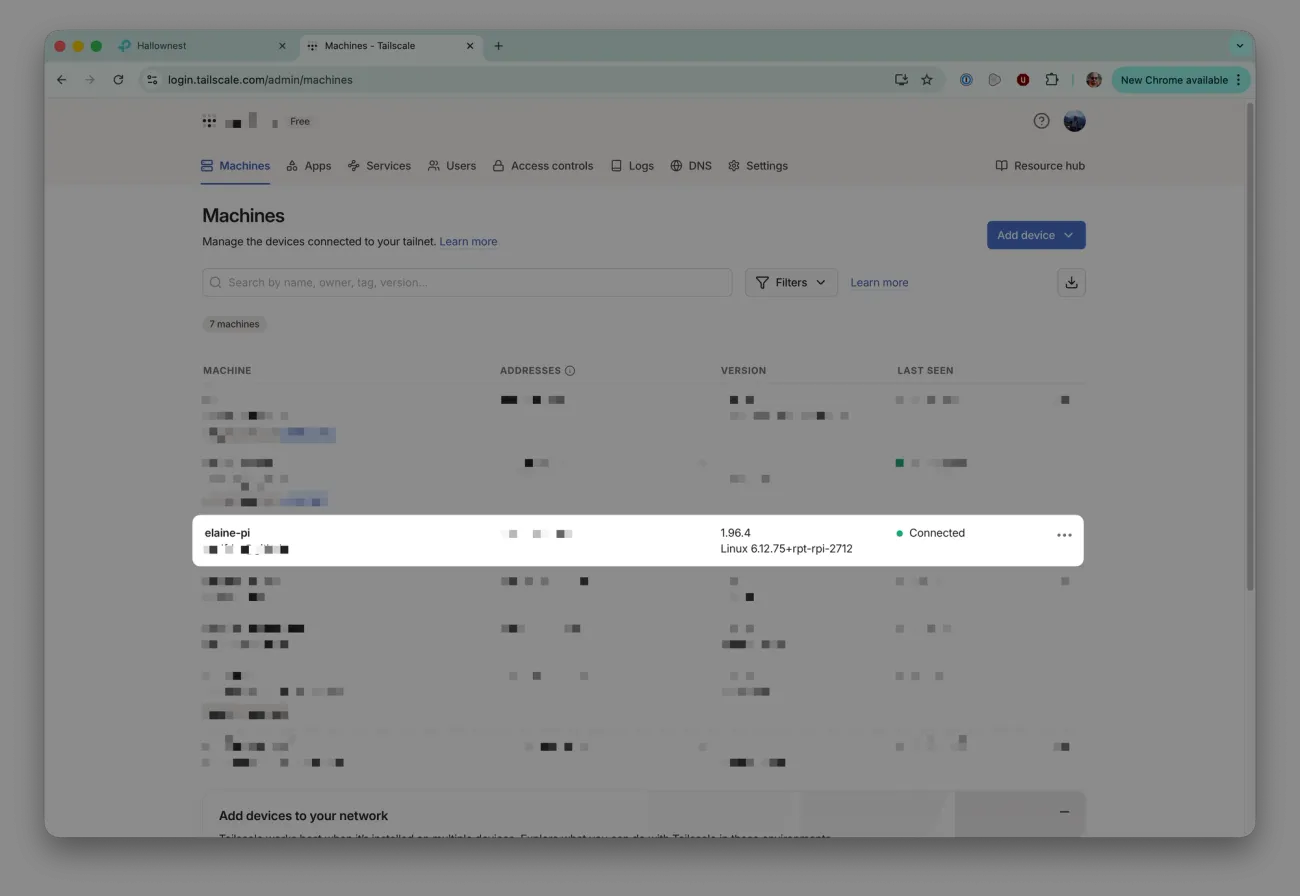
The server is connected, but it isn't ready to act as an exit node yet.
Exit Node
We're almost done with Tailscale. To make our server work as an exit node, we need to tweak a few network settings.
First, let's enable IP forwarding:
echo 'net.ipv4.ip_forward = 1' | sudo tee -a /etc/sysctl.d/99-tailscale.conf
echo 'net.ipv6.conf.all.forwarding = 1' | sudo tee -a /etc/sysctl.d/99-tailscale.conf
sudo sysctl -p /etc/sysctl.d/99-tailscale.conf
Now advertise this device as an exit node and bring Tailscale back up:
sudo tailscale set --advertise-exit-node
sudo tailscale up
Back in the Tailscale dashboard, we'll see the Pi was tagged as “Exit Node”:
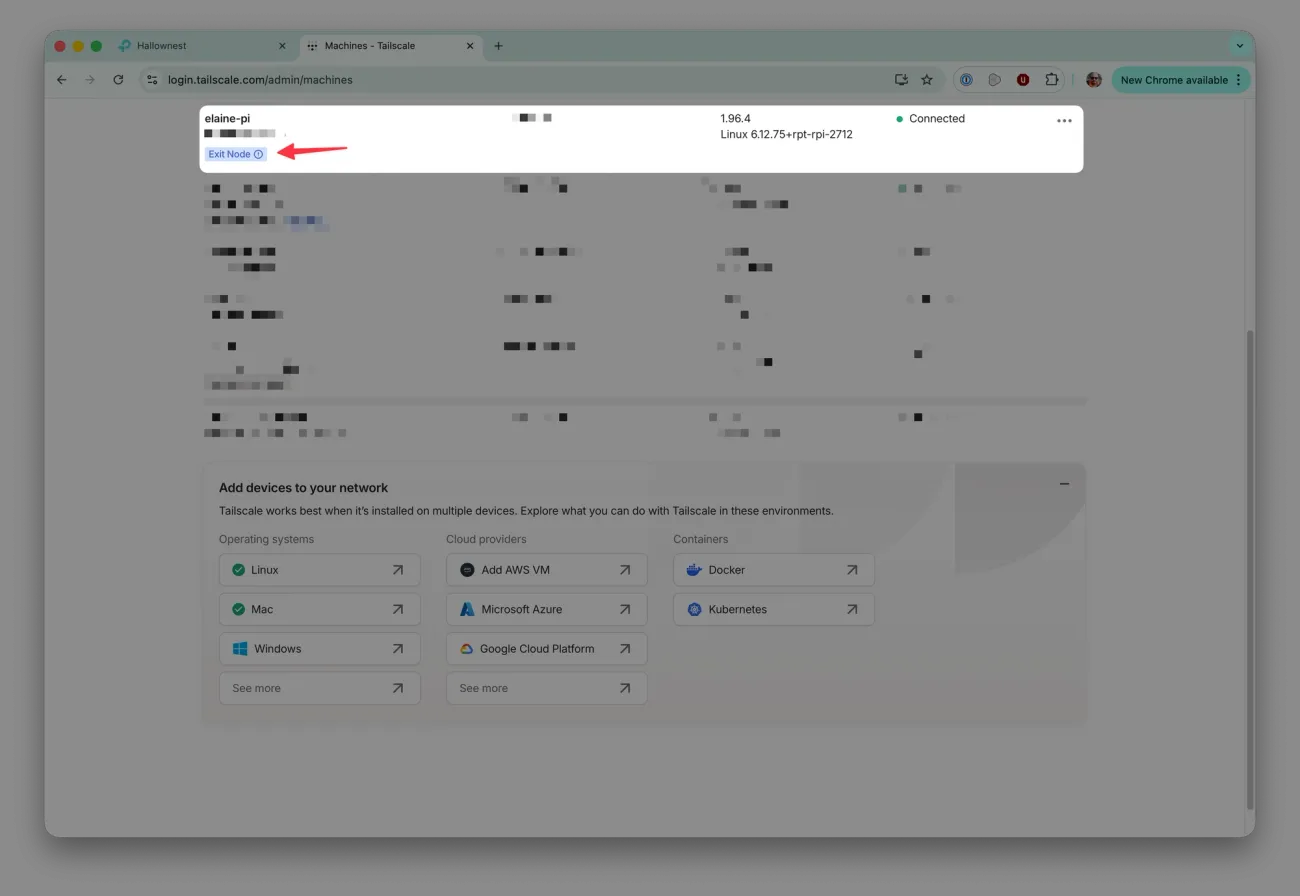
Now let's officially turn the server into an exit node.
Click the “…” menu of the server in the Tailscale dashboard and select “Edit route settings of X”
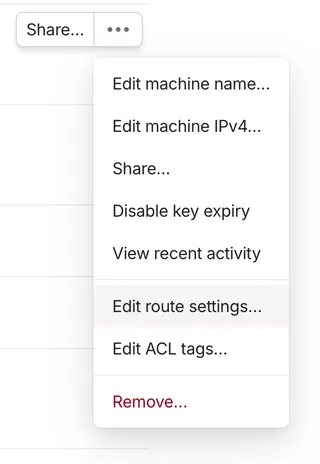
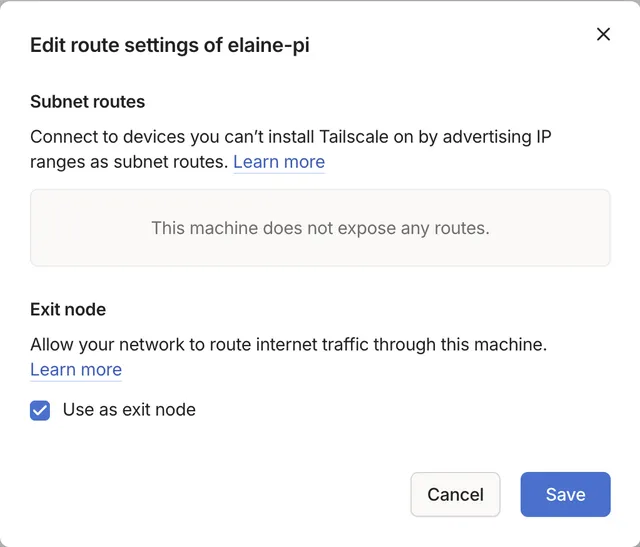
Last but very important: disable the “Key expiry”.
This is a must because if the key expires and we don't have physical access to reconfigure, your server becomes a paperweight.
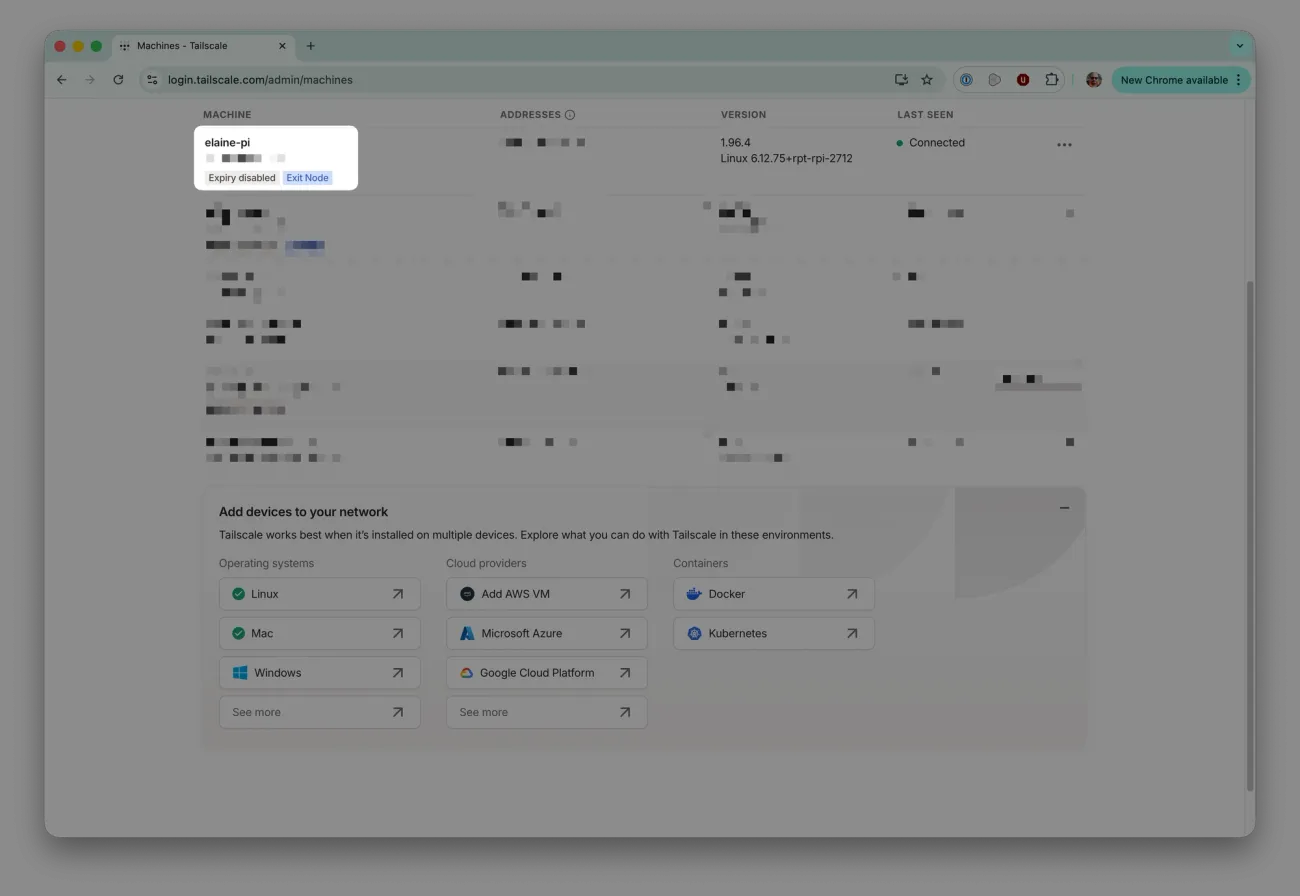
At the end, the row of your server in the Tailscale dashboard should looks like this:
Testing connection
Now it's time to see if our setup is working.
First, let's check our current public IP:
curl ifconfig.me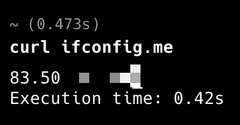
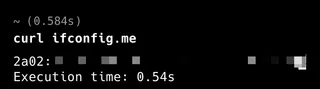
Now I'll disconnect from my local network (to simulate being elsewhere) and connect to my phone's hotspot.
Running the same command, the IP should already be different:
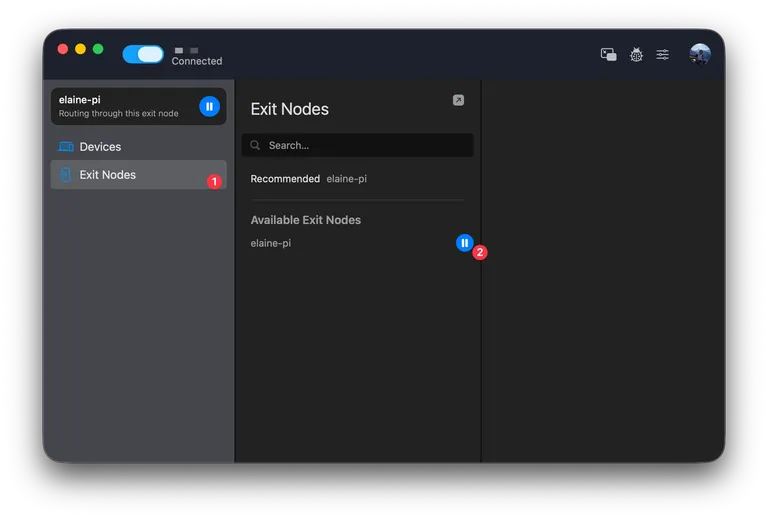
Now, open Tailscale client, click "Connect", select the “Exit Nodes” tab, and if you've done everything as described above, you should see your Pi server ready to go.
Click the “Play” button and you’ll she be using it as an exit node.
If we run the command once more, we'll see the same IP as before, that's expected, because we're still on our home connection. Once you set up this Pi in another location, you'll get an IP specific to that place.
Remote access via SSH
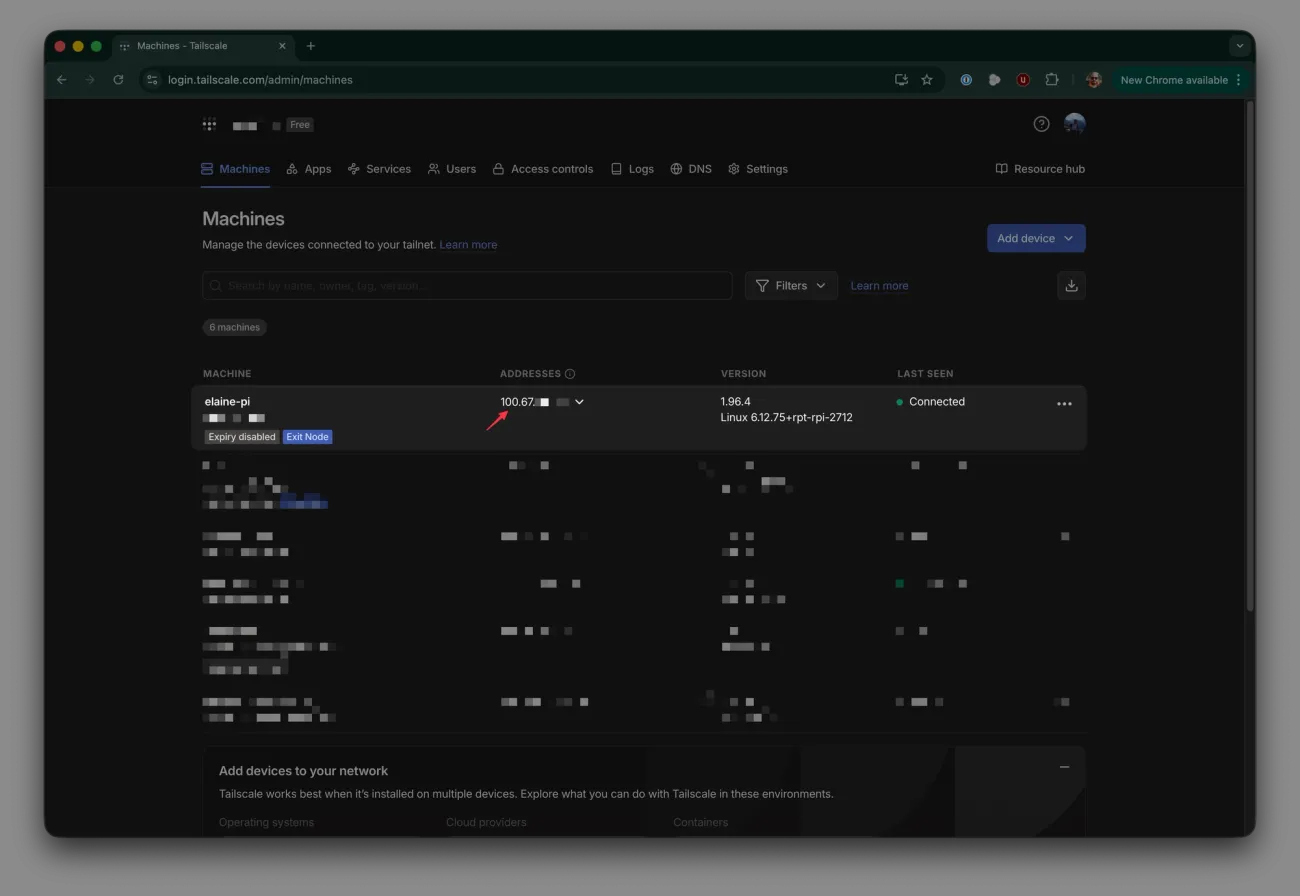
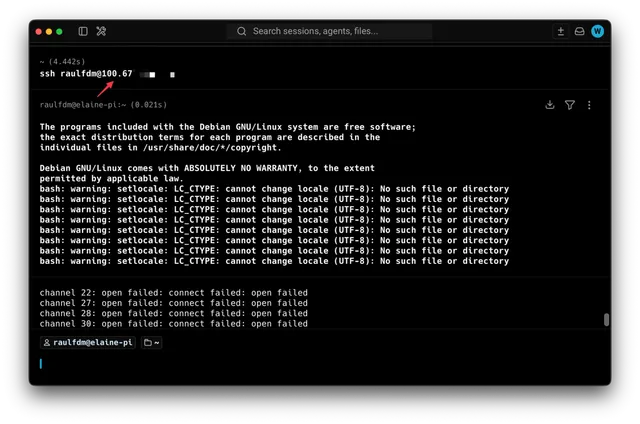
If you ever need to do anything on this server via SSH, all you have to do is connect to Tailscale, find your Pi server's IP in the dashboard, and use it as the SSH address:
And that's all!